Tuesday, November 9, 2021

Texturion Data

 Texturion is a tool for defining textures used in MKI3D.  Colors of the texels are defined by RGB functions of XY coordinates. The functions are in the form of GLSL expressions that are included in temporary shaders used to draw the actual textures.

Texturion-data contains  JSON definitions for some example textures presented on HTML index pages with the links  opening them in Texturion. 


You can experiment with changing the expressions of RGB functions in the RED,  GREEN, and BLUE textfields on the page.


The ALPHA should be left 1.0.

There is also a textfield with with a JSON string representing the applied RGBA definitions that can be saved on disk or copied and then pasted into MKI3D in TEXTURES menu (by pressing the key P).


You can apply the textures on selected triangles of the model.


The GitHub repository of Texturion-data also contains Bash scripts for dynamic creation of the index pages. Thus  you can clone the project and use it with some local HTTP server on your localhost as your own extensible collection of textures.


Friday, October 9, 2020

MKI_SG TWA in Google Play for Android


I have recently packaged the MKI Search Game PWA  as a TWA (Trusted Web Activity)  with Bubblewrap  according to the instruction in Trusted Web Activities Quick Start Guide.

This package is small in size since it runs in the Chrome browser, however it can now be installed from this Google Play Store URL  as any other regular Android app an runs in full screen mode:


Sunday, December 22, 2019

MKI Searching Game Progressive Web App with textures


New version of MKI Searching Game progressive web app with textured stages  is now  available on the web page: 


You can run the PWA in the browser and you can add it  to the main screen as a full screen application on your smartphone.

UPDATE: Now the game is also in Progressive App Store.

Tuesday, October 1, 2019

MKI3D GAME with textures

The recent version (2.01) of MKI3D GAME contains textures in many stages.


You can get the  compiled versions for Linux at:

You can find the source code at GitHub.


Sunday, August 18, 2019

Textures in MKI3D

Textures are being introduced into MKI3D. It is still work in progress. However, the first examples can be observed in MKI3D-Data repository


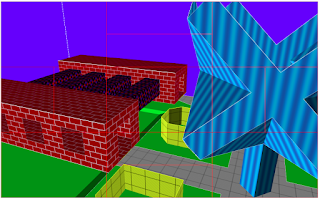
 Textured MKI3D stage

The textures are not in a binary form. Instead, they are defined with float type GLSL expressions defining the R, G, B, A functions. Each function has the arguments x and y and defines the value of the corresponding color component of the (x,y) point of the [-1.0, 1.0]x[-1.0, 1.0] square.
There is a web application TEXTURION  being developed, for preparing the definitions and previewing the textures.  

Sunday, October 21, 2018

New interface and color sky-boxes in MKISG Android app

The  version 2.0 of MKISG Android app has a new (memory-less) interface and colorful sky-boxes.


This is interface (the same as in MKI3D TRAVELER and MKI3DGAME) has separate sectors for moving and for rotations, thus it should be more intuitive and easier to use ...

Friday, September 28, 2018

Linking MKI3D stages into webs of stages

URL links in the  MKI3D editor 

In the recent version of MKI3D you can place URL links in your designed stages that can be followed when the stage is browsed in  MKI3D TRAVEL.
The link symbol in the MKI3D editor looks like that:


Like the selected and bookmarked points, the link symbols are displayed in the current cursor's  color, and are always facing the observer.

URL submenu

There is a new position 'U' on the main menu:


This is for creating and manipulating URL links. At present, the URL submenu looks like that:


You can add a new empty link at the cursor position by pressing the 'A' key on this submenu.
(There is a minimal distance required between any two links positions.)

The edit ('E'), cut ('X') and paste ('V') actions are performed on the link at cursor position. 
There is a new option 'U' at the cursor submenu, the moves the cursor to the position of the nearest link.


Edit URL submenu

The editing of link is done in the following submenu:


The textfields on Edit URL  submenu

There are three input text fields for: LABEL, OPENER, and URL.

LABEL may be any any text. It is prominently displayed in the  MKI3D TRAVEL, when the user is offered to follow the link.

OPENER and URL are used to construct the actual URL of the page that is opened by the link.
If OPENER and URL are full (i.e. not relative) URLs, then they are simply concatenated.
The result should be a legal full URL that can be opened by the browser.

For example if:

  • OPENER is 'https://mki1967.github.io/mki3d/mki3d_www/mki3d.html?input=', and
  • URL is 'https://mki1967.github.io/mki3d-data/data/web/stage1.mki3d',
then the actual URL to be opened is:


https://mki1967.github.io/mki3d/mki3d_www/mki3d.html?input=https://mki1967.github.io/mki3d-data/data/web/stage1.mki3d

If OPENER or URL is a relative URL, then it is first extended to a full URL
("actual opener URL" or "actual input URL", respectively).
Then the concatenation of "actual opener URL" with "actual input URL"  is the URL to be opened by the browser.

The construction is made with the URL() constructor ,
where a different "base URLs" are used for OPENER and URL
( "opener URL base" and  "input URL base", respectively).

Computing "actual input URL" from URL

The "actual input URL" is made from the URL with the "input URL base",
if the URL is a relative URL. 

If the the MKI3D editor or  in the  MKI3D TRAVEL were opened with the parameter '?input=' ,
then the "input URL base" is  the URL of the loaded stage.
(The value of the parameter  '?input=' may also be an relative URL. In such case, the "input URL base" is the URL of the document.referrer - the URL of the page from which it is opened.)

Thus the relative URL links in the stage are assumed to have the same base as the stage itself. (This enables desingnig and testing  of local webs with the http://localhost server and then publishing them e.g. by pushing on public static pages such as GitHub Pages.)

Computing "actual opener URL" from OPENER

If the OPENER is empty the the "actual opener URL" is also empty.

In  MKI3D TRAVEL and in MKI3D editor  the "opener URL base" is taken from
window.location.href, thus the OPENER from the link is assumed to have the same base as the current opener of the stage.

Note that


have the same url base. 
Thus, if you are working in the editor open from the URL: 

 https://mki1967.github.io/mki3d/mki3d_www/mki3d.html 

and if the link has:

  • OPENER : 'travel.html?input=', and
  • URL : 'https://mki1967.github.io/mki3d-data/data/web/stage1.mki3d',
then the actual URL to be opened is:

https://mki1967.github.io/mki3d/mki3d_www/travel.html?input=https://mki1967.github.io/mki3d-data/data/web/stage1.mki3d

On the other hand, if the editor were open from URL:

http://localhost:8000/mki3d/mki3d_www/mki3d.html

then the actual URL to be opened by such link would be:

http://localhost:8000/mki3d/mki3d_www/travel.html?input=https://mki1967.github.io/mki3d-data/data/web/stage1.mki3d

This is useful if you want to work with applications served by the http://localhost server
from your local clones of MKI3D repo. 
(You may follow the hints from README.md  of the mki3d-data repo.)
Probably, you would like to have the links with the short relative URLs, like:
  • OPENER: 'travel.html?input=', and
  • URL: 'stage1.mki3d'

Remainig options of URL Edit submenu

The 'Tab' key on the submenu lets you test what would be opened with the  current values
of OPENER and URL.
Note that the the actual URL opened by the link with relative URLs depends on how the editor was started.

The 'X' and 'V' keys let you cut the link and then paste it in the cursor positions. This is useful if you want to remove the link, or to make many copies or similar links.


Stages in the  MKI3D editor vs. the stages in the MKI3D TRAVEL.

Stages browsed in MKI3D TRAVEL the  are designed in the  MKI3D editor .

The entry point to the stage in the MKI3D TRAVEL is where the cursor was left in the  MKI3D editor . 

The observer is aligned with X,Y,Z axes looking into positive Z direction. 
To see the orientation in  MKI3D editor , you should see the cursor like that:


The scaling from MKI3D editor is not applied in  MKI3D TRAVEL. To see the size of the stage in MKI3D editor set CURSOR STEP to 1 on the Inputs Page ('QI').

Don't forget to set the proper light direction ('QDL') . It is used in the  MKI3D TRAVEL.

INDEX OF MKI3D WEB

I have just created a HTML page on GitHb Pages that is intended to contain a list of links that are entries to the web of MKI3D stages. The address of the page is:  https://mki3d.github.io/mki3d-web-index/

If you want to submit  such link to your stage the please read and follow the simple instructions in
README.md. (I short: you just have to open new issue containing the URL that opens your stage in MKI3D TRAVEL.)

Tuesday, September 25, 2018

Webs of 3D Stages

The recent version of MKI3D let you insert URL links into your 3D designs.
Now you can design webs of 3D stages and your web browsing can be just travelling between the 3D stages and normal HTML pages.
I have just added MKI3D TRAVEL PWA that is a kind of browser for MKI3D stages.


https://mki1967.github.io/mki3d/mki3d_www/travel.html

You can navigate by clicking/touching the screen sectors and follow or ignore the URL links of the aproached link symbols.
At this moment I have just created an example web (reachable from the TRAVELER) by adding some links to the stages of my games.
I will soon prepare a post with more informations about URL links in MKI3D and how to build your own webs of stages ...

Monday, September 10, 2018

I have just updated drawing of  selected and bookmarked endpoints. (I have noticed that the procedure was extremaly inefficient.) If you are using PWA version, then you need to restart MKI3D twice (the first time on-line) for the changes to have effect.


https://mki1967.github.io/mki3d/mki3d_www/mki3d.html?input=https://mki1967.github.io/mki3d-data/data/stages/meander-stage.mki3d

Tuesday, August 21, 2018

New Game Stage


A new stage has been added to mki3dgame and MKI SG PWA.
Now the games have 20 stages.

Happy playing !

Saturday, August 18, 2018

COLLECTION OF MKI3D DATA

It is not easy to invent meaningfull names for the files containing 3D designs and then to remember what is stored in the file, given its name only.
I am saving my *.mki3d files on disk in a folder that is being synchronized with a cloud, such as Dropbox or MEGAsync. So far, to  recollect what is contained in the file, I had to load it to MKI3D Editor using the file load submenu ('QFLF...'), which is  a time consuming action.
Now, since MKI3D can open data from URL given as input parameter, I am using bash scripts to  build a simple local web site ( HTML index files ) and a simpe local server (written in Go)  that let the web site be displayed in the web browser.
The HTML index files are created so that when you click on the file name, the file is being opened in the MKI3D editor in the browser. 
I have also made the web-site into git repository and pushed it to GitHub and then (in the settings) I made it  visible as GitHub Pages.

https://mki1967.github.io/mki3d-data/


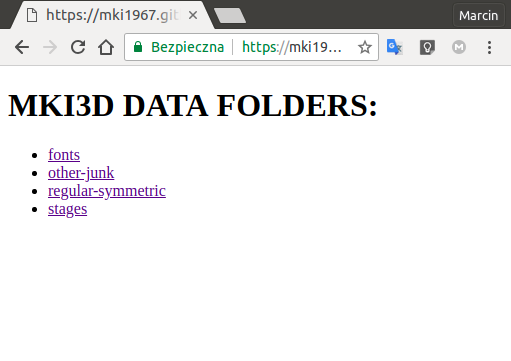
The MKI3D DATA is organized in two-level hierarchy. On the first level  there are folders:


https://mki1967.github.io/mki3d-data/data-index.html
Each folder contains a list of files:


https://mki1967.github.io/mki3d-data/data/regular-symmetric/INDEX_MKI3D_PUBLIC.html


When you click on the file on the list, its contents is opened in MKI3D editor:


This is ready to use solution, if you work on Linux system with bash and installed Go compiler.
(I think, for other systems the analogous  solutions could be created.)
The workflow is following:

  • I start the server with the script: ./bin/run-local-server.bash.
  • I open the printed URL http://localhost:8001/ in the web browser. (So, I can browse the  indexed data.)
  • Whenever I save a new  mki3d file (or less frequently), I run the script ./bin/update.bash to update the HTML index files.

You also have an (easy) option to publish your data on GitHub Pages.


Wednesday, July 18, 2018

URLs for Opening MKI3D with Loaded Input Data


The new version ( v0.20 ) of MKI3D PWA can be used to display your mki3d designs in the browser.


You can create links on your pages that can open the MKI3D editor with loaded content.
The link consists of the address of the application  'https://mki1967.github.io/mki3d/mki3d_www/mki3d.html'  with a  parameter 'input' in its query string, which is an URL of the mki3d data file.

Here are some examples of links to the stages of mki3dgame directly on the GitHub:


If the 'input' parameter is releative URL, the MKI3D tries to append the URL base of its 'document.referrer'. ('document.referrer' is the page that contains the opening link.)
You can also specify the parameter 'base' that overrides the URL base of  'document.referrer'.

The following page contains examples of the use cases:

https://mki1967.github.io/mki3d/docs/examples/mki3d-data/test-url.html


(Note that you may need to close and reload MKI3D on-line twice or more  to have the progressive app updated to the new version.)

Wednesday, July 11, 2018

Setting Canvas Dimensions in MKI3D

Update to MKI3D Progressive Web App :


I have just added manual setting of the canvas dimensions on Inputs Page ('QI'):


(You should soon have it on Inputs Page of your copy of the pwa.)

Together with the display mode ('D') and saving of the image from the browser it can be used e.g. for designing of nice square pictures of icons:


The 'RESET DEFAULT' button resets the default canvas dimensions for the current window size.

Thursday, June 28, 2018

electro-snail-stage


New stage has been added to mki3dgame.
Version 1.13 for Linux is available as:

It has been also included in MKI_SG Progressive Web App

Thursday, February 8, 2018

Exporting to PLY

I have noticed that many versions of Blender do not have importing of COLLADA format.

In MKI3D I have implemented exporting to  PLY - Polygon File Format,
which is supported in more versions of Blender.


Thursday, February 1, 2018

Mki3dgame on Flathub

 mki3dgame on Flathub


Mki3dgame is now available as a Flatpak pakage on Flathub.

If you have flatpak installed on your Linux, then io.github.mki1967.mki3dgame can be installed on your system with the command:

flatpak install --from https://flathub.org/repo/appstream/io.github.mki1967.mki3dgame.flatpakref

or it can be installed locally in your user account:

flatpak --user install --from https://flathub.org/repo/appstream/io.github.mki1967.mki3dgame.flatpakref


(On Linux Mint, Flathub is now integrated into the software manager.)

After installing,  you will probably find the icon on the desktop menu for starting the programs (should be in the games section).
You can also run it from the command line:

flatpak run io.github.mki1967.mki3dgame


Thanks to Flathub people for creating org.freedesktop.Sdk.Extension.golang and to  developers who helped me in  preparing the metadata for the flatpak-builder.


Thursday, November 2, 2017

mki3dgame-snap

Mki3dgame is  available also as a snap for Ubuntu and (probably) some other distributions that support snaps.
You can install it with the snap command:

$ sudo snap install mki3dgame-snap 


and then run the game with:

$ mki3dgame-snap


(Note that there are also AppImages appended to the releases  and the source code repository contains bash scripts:  make-AppImage.bash and make-snap.bash for making  AppImages and Snaps.)

Saturday, October 14, 2017

Tutorial Post 20: Using IndexedDB.

Mki3d can now (since version 0.11) store your designs in IndexedDB.
IndexedDB is an internal local database managed by the related browser.
The 'IndexedDB Menu' in mki3d can be invoked by a key sequence 'QB'.


On this menu you can:

  • press the key 'A' to store the current design in the database, or
  • press the key 'I' to start 'Inspecting IDB' sub-menu for inspecting the database.
Thus, to store your design, you only have to press the key sequence 'QBA'.
The entry is stored with the following attributes: its name and creation date.
You do not need to change the name, since the database can contain many entries with the same name. It is convenient for storing many intermediate versions of your design, or if you do not want to waste your time for inventing the name or deciding where to save the data in the  file system.
(Remember that you always can set the current name on the 'Inputs Page'.)


When you inspect the database the entries are sorted by the date and you can preview the stored designs as they where visible on the screen when they where stored.
You start inspecting from the last stored one.


You can cycle through the sequence of entries backward or forward by pressig 'P' or 'N' or arrow keys.
If the database contains too many entries, you can filter them: Press 'F' to invoke the 'IDB Filters' sub-menu.


Here you can set the bounds (or single bound) of dates' range and a sub-string that the filtered entries must contain in their name.
Press 'Enter' key  to confirm or 'Esc' to cancel, and return to 'Inspecting IDB'.

While inspecting the database  you can also merge,  load, or remove the entry. Each of these actions requires confirmation:


You have to press precisely the 'Y' key to confirm. Pressing any other key cancels the action.

The last option on 'Inspecting IDB' sub-menu is 'V' that hides the menu and cursor to show you the  the preview in full display.

The IndexedDB can be convenient for rapid storing and previewing of your  designs. However, I would recommend that you still save copies of your more precious designs outside the browser: Use 'QFS' key sequence to invoke saving in the files, or by copying text from text areas.
The persistence of your data in IndexedDB may depend on the policy of the browser's producer.


Thursday, September 14, 2017

Changing Current Name on Inputs Page

'CURRENT NAME'  input field has been added on Inputs Page to set the name to be used in  the name of saved file.

Wednesday, August 30, 2017

MKI3D as Progressive Web App.

MKI3D RAPID MODELER  has its on-line version  transformed into Progressive Web App.
After you first open the HTML page, the app is cached by the browser.
You can either bookmark or (in Chrome) add the page to your desktop.
Then the application can be used off-line.
Note that the application still needs  a physical keyboard. (It is a keyboard-driven editor after all ;-)

Screen-shot of icon on the desktop (CLICK TO OPEN PWA APP).